How to Add YouTube Content

The process for displaying videos from a YouTube channel directly in the schedule is simple. The idea is to prepare the URL, register the content agency, and add the channel correctly in Neonews Studio.
Prepare the URL
First, copy the display URL of the YouTube channel that will be used.
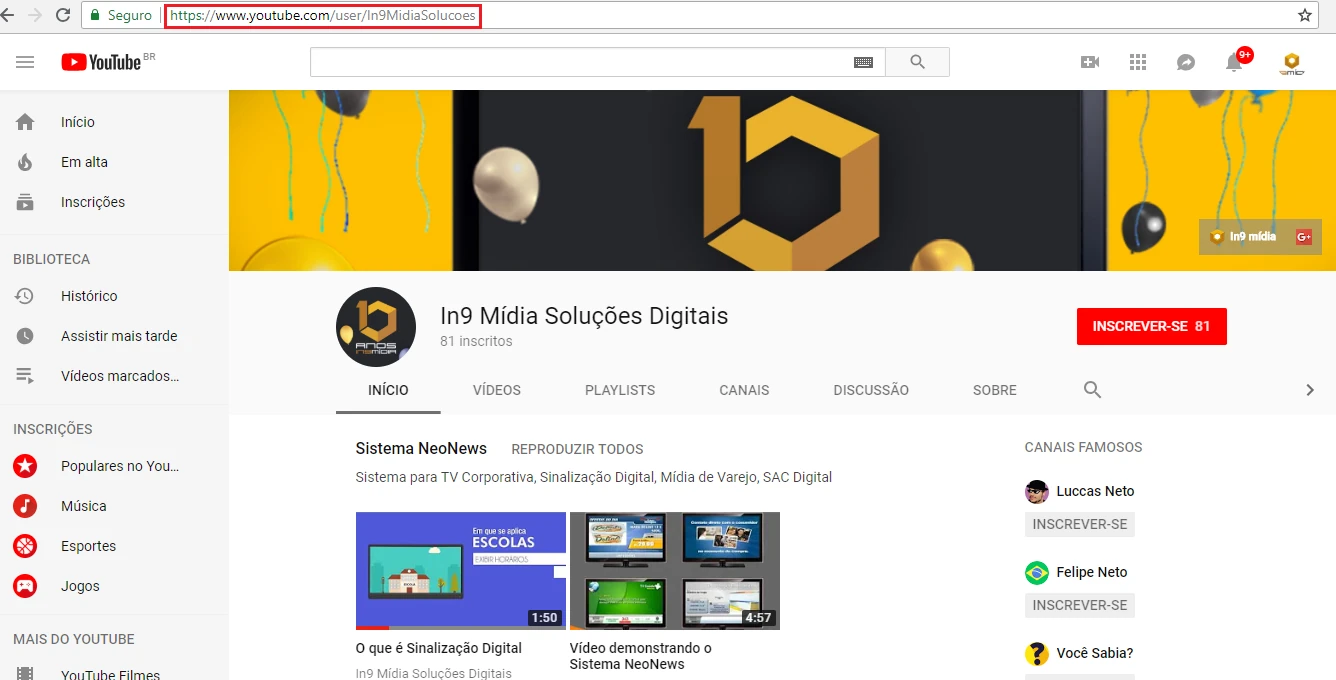
Then adjust the URL to the format accepted by the system. If there are uppercase letters, use lowercase only.
Create the content agency
In Neonews Studio, go to:
Content > External Content > Content Agencies
Create a new external content agency, for example, YouTube.
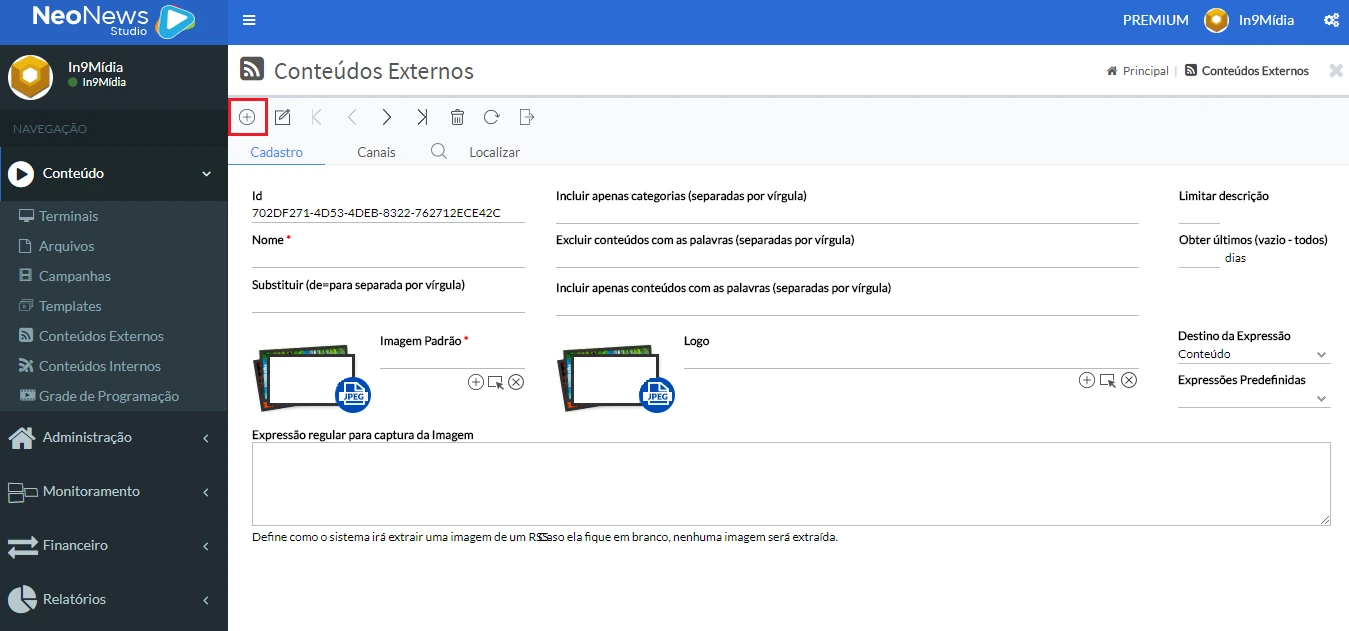
When creating the agency, fill in the required fields:
- Name
- Default image
Then click SAVE.
Add the channel
After saving the agency, click the Channels tab and select Add Channel.
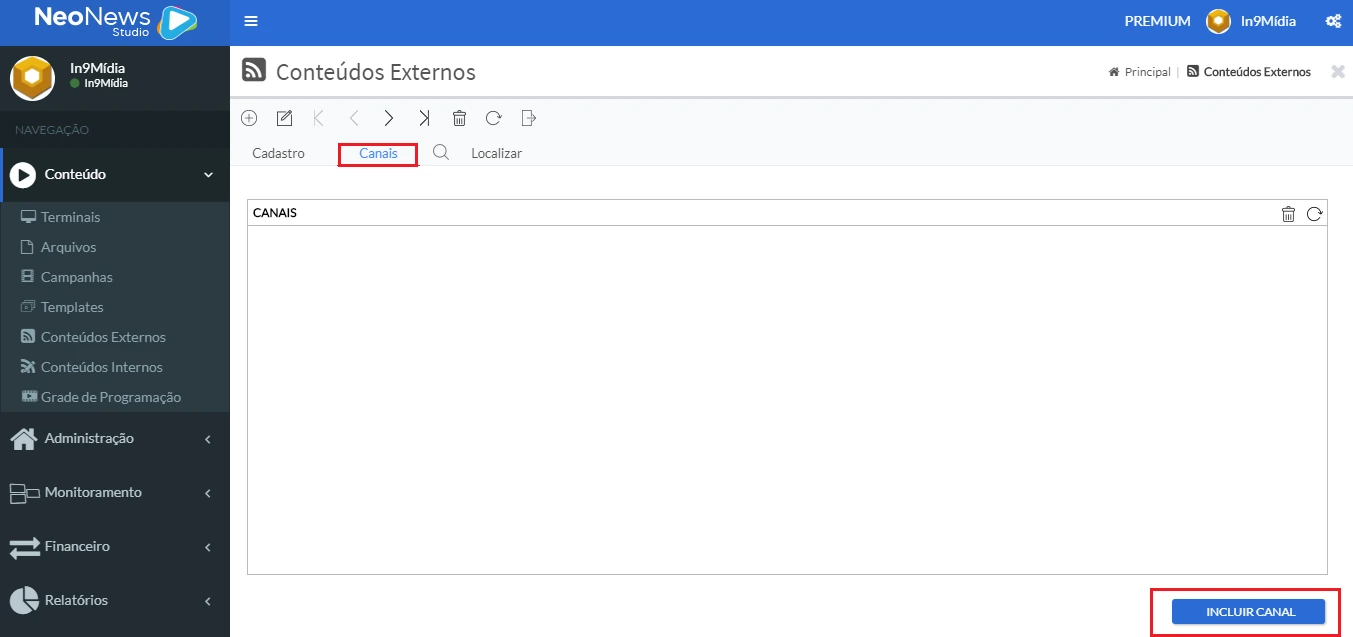
On the channel creation screen:
- Define a name for the channel.
- Paste the adjusted YouTube URL into the RSS URL field.
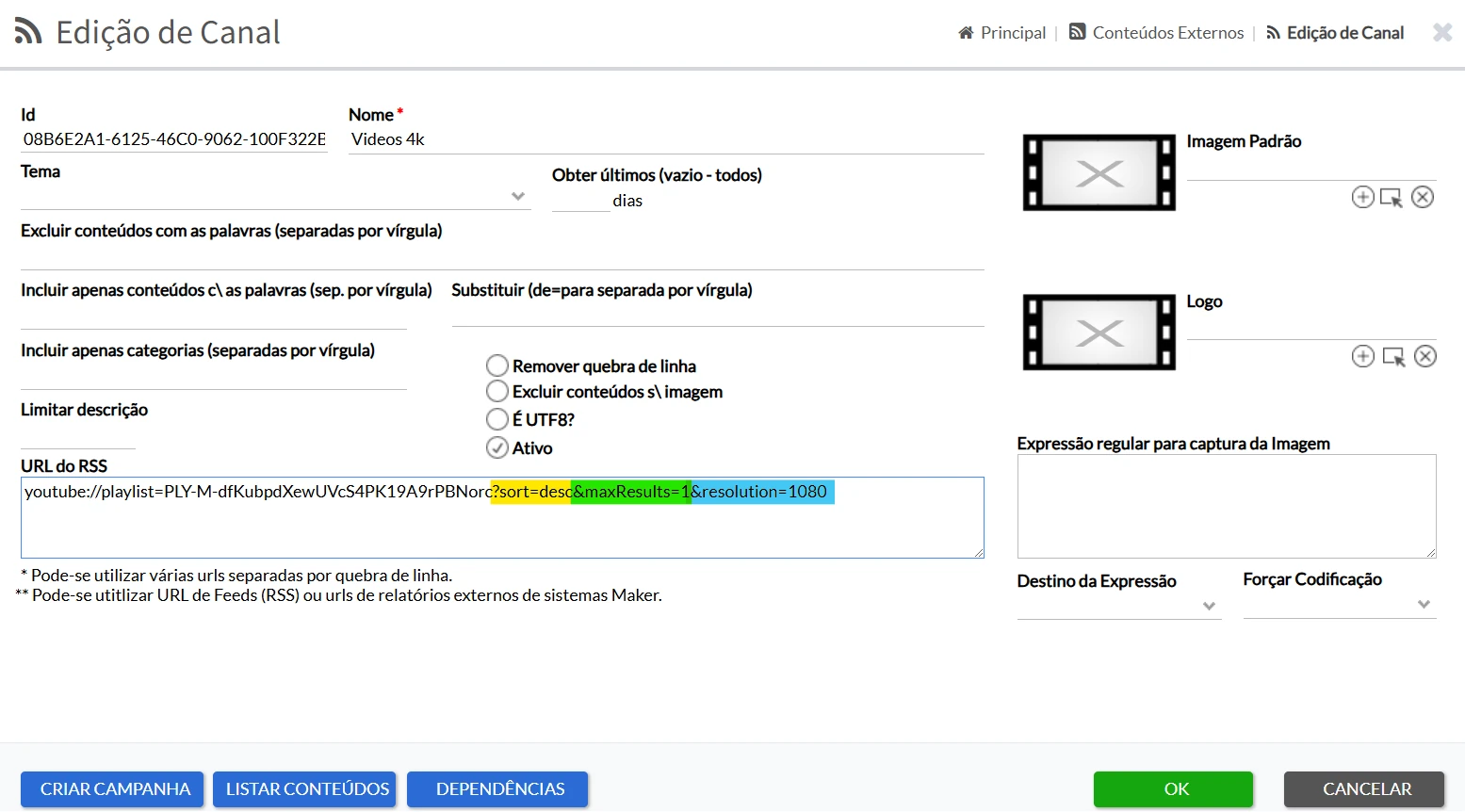
You can also use parameters to customize the listing:
maxresults: defines how many items are listed.sort: controls the display order, such asascordesc.resolution: defines the video quality.
Common resolution values:
1080: excellent quality, no audio720: very good quality, no audio480: good quality, no audio360,280, and140: medium quality, with audio
Create the campaign
After registering the YouTube channel, create a campaign of type Social Media and select the configured channel.
Remember that the channel will be available inside the created agency.
For this campaign, use:
- Duration:
-1 - Template:
You Tube - Videos