Scheduling
Scheduling lets you define when certain activities or content should happen in the system. The content agency organizes external sources such as RSS and other integrations.
Scheduling
The scheduling engine helps automate tasks, control display periods, and define when each action should happen.
The available schedule types are:
- Never
- Loop
- Repeat every
- Daily
- Weekly
- Monthly
Common fields
Regardless of the selected type, some fields are always available.
Schedule name
Defines the name that will identify the schedule.
Schedule type
Lets you select one of the options available in the system.
More schedules
The More Schedules button lets you create additional schedules for the same activity.
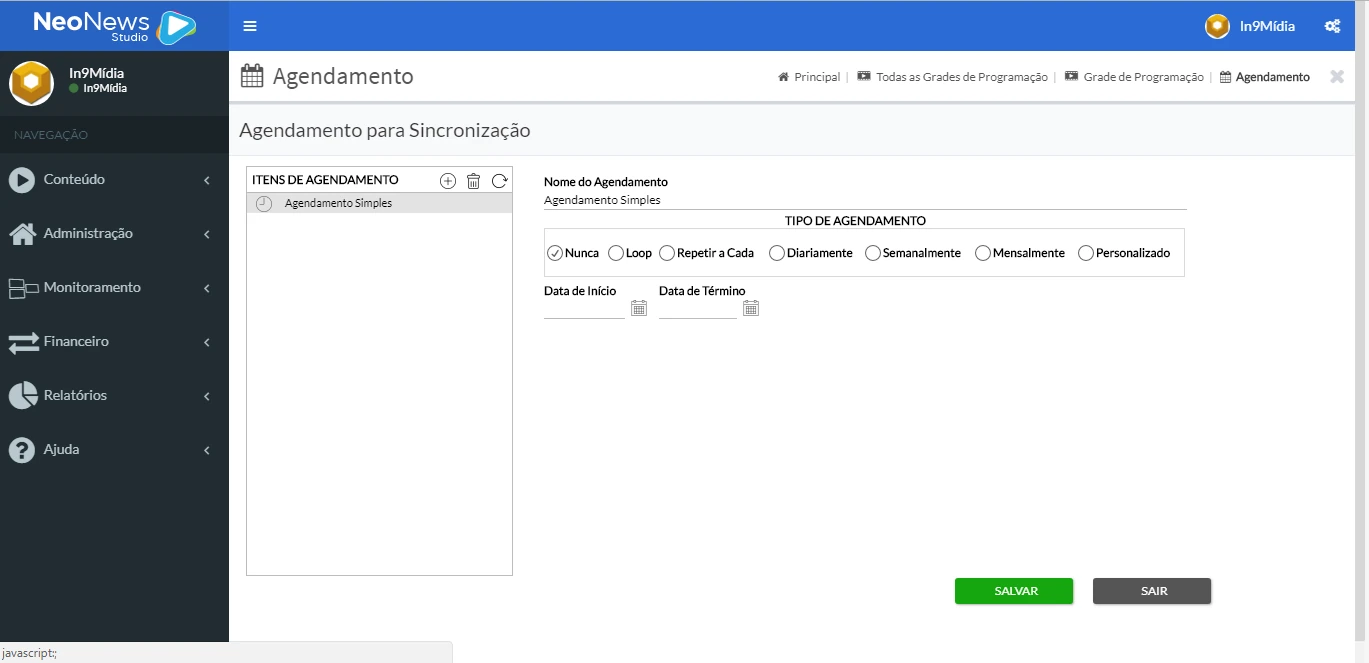
When you click Add Schedule, enter a name for the new schedule and click Save. The system then returns to the main screen so the settings can be defined.
Type: never
This is the default type. When selected, no scheduling rule is applied to the activity.
Type: loop
When this type is used, the activity remains running continuously during the configured period until the end time is reached or higher-priority content is triggered.
Specific fields
- Start date: defines the start date of the schedule validity.
- End date: defines the end date of the schedule validity.
- Start time: sets the time when the loop begins.
- End time: sets the time when the loop ends.
- Regions: restricts the schedule to terminals assigned to specific registered regions.
To keep a campaign in loop from 08:00 to 12:00, configure:
    Start time: 08:00
    End time: 11:59
Type: repeat every
This type runs the activity at user-defined intervals.
Specific fields
- Start date: defines the start date of the schedule validity.
- End date: defines the end date of the schedule validity.
- Repeat every: defines the activity interval.
- Days of the week: runs the schedule only on the selected days.
- Months of the year: limits execution to specific months.
- Regions: restricts execution to specific regions.
Examples:
- Every 5 minutes
- Every 30 minutes
- Every 2 hours
- Every 1 day
Type: daily
Runs the activity every day at the defined time.
Specific fields
- Start date: defines the start date of validity.
- End date: defines the end date of validity.
- Time: defines the time when the activity will run daily.
- Regions: restricts the schedule to specific regions.
Type: weekly
Runs the activity on the selected days of the week and at the defined time.
Specific fields
- Start date: defines the start date of validity.
- End date: defines the end date of validity.
- Time: defines the execution time.
- Days of the week: lets you select the days when the schedule will run.
- Regions: restricts the schedule to specific regions.
!!! note "Important" If no day is selected, the system will consider every day of the week.
Type: monthly
Runs the activity on a specific day of the month and in the selected months.
Specific fields
- Start date: defines the start date of validity.
- End date: defines the end date of validity.
- Time: defines the execution time.
- Day of the month: defines the day when the activity will run.
- Days of the week: lets you restrict execution to specific weekdays.
- Months of the year: lets you restrict execution to specific months.
- Regions: restricts the schedule to terminals assigned to specific regions.
Example:
Day 1
Day 15
Day 30